 NegRevel
01
Import & Crop
Import your scan and check the crop before converting.
Step details →Every frame, worth rediscovering.
NegRevel · Overview
Bring your negatives to life, and enjoy every frame.
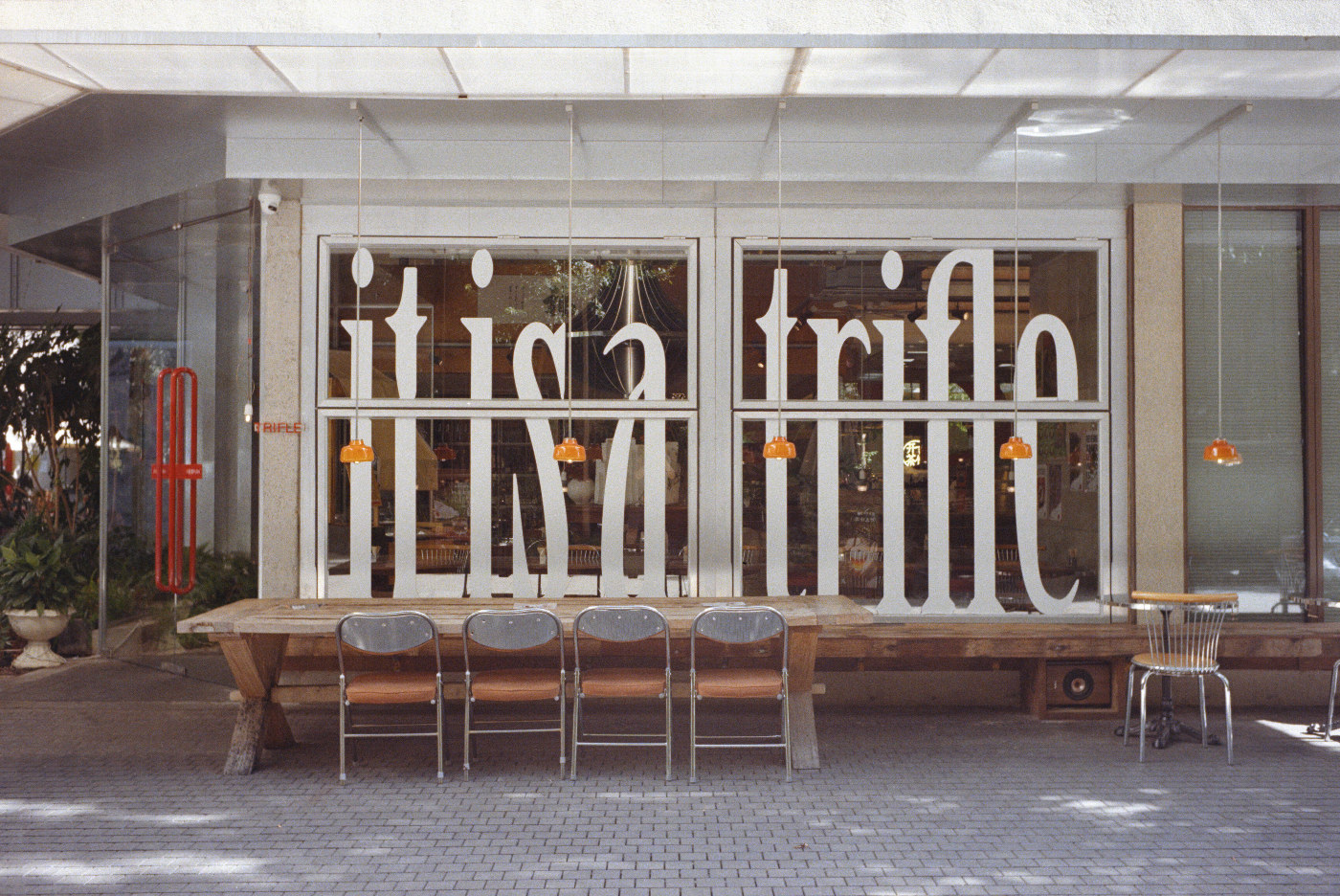
Hover or focus to pause. Use the previous and next buttons, or left and right arrow keys, to choose an image pair. Touch and reduced-motion users browse manually.
Workflow overview
Import and crop your scan, convert and adjust it, then save your work and export the photo.
Import your scan and check the crop before converting.
Step details →Run Auto Convert, then refine exposure, white balance and tone.
Step details →Save an editable document; export JPEG or 16-bit TIFF photos.
Step details →Modes
Edit one photo, or keep several in a workspace. Start with Filmic.
Process a roll as one document. Start with Filmic; Auto Tone needs compatible scans with consistent capture settings.
Guides
Converted with NegRevel
NegRevel-converted photographs will be shown here when supplied.