 NegRevel
1Film area
The orange rectangle contains the photograph and clear film border. Review which part belongs in your conversion crop.
Scan preparation
Start with a clean capture. Separate the film from its surroundings, then check the crop before converting.
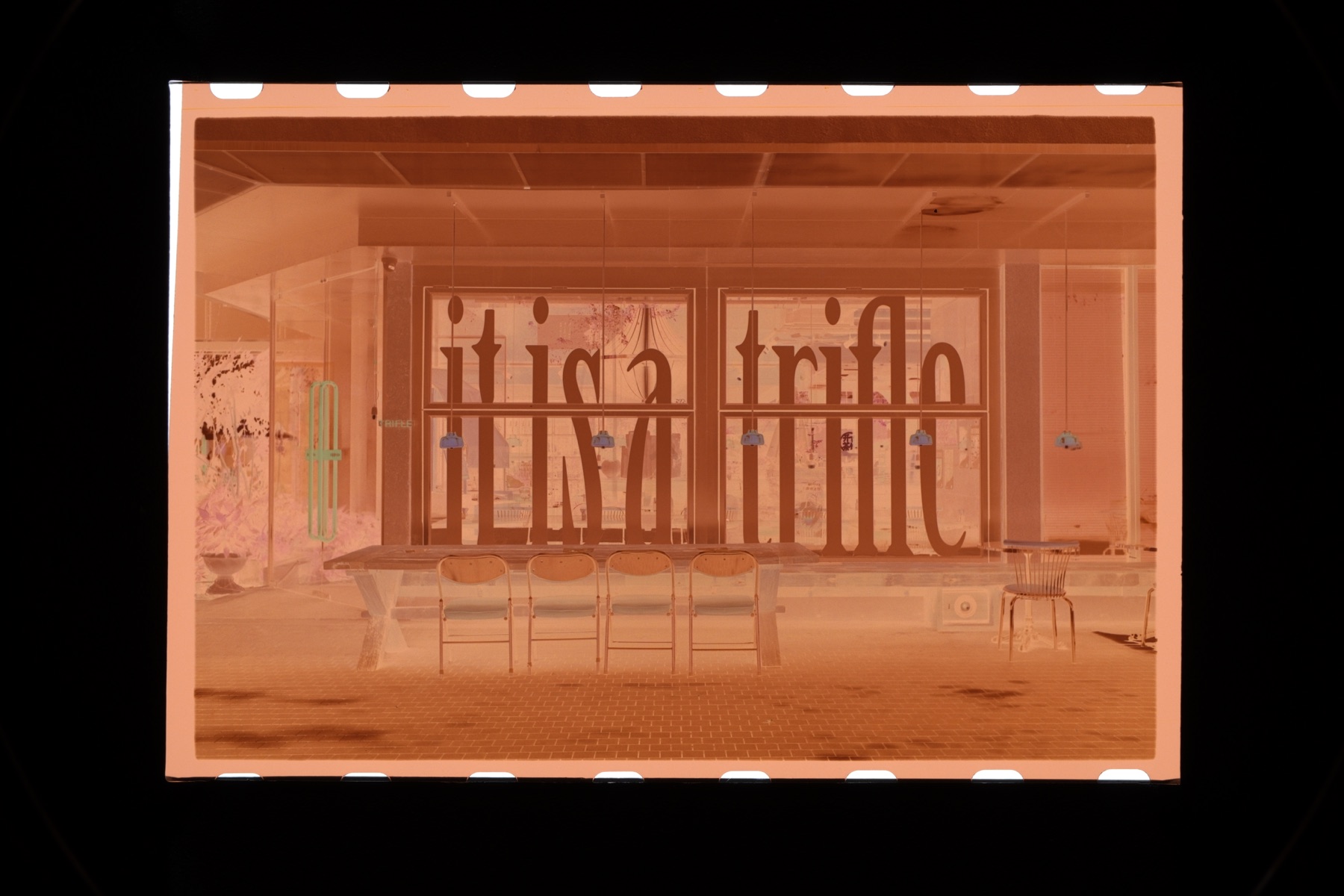 1 · Film2 · Holder3 · Backlight
The orange rectangle contains the photograph and clear film border. Review which part belongs in your conversion crop.
The near-black surround is the holder, not photographic image data.
The narrow bright strip at the left edge and the sprocket openings show light without film over it. Keep these pixels out of your analysis crop.
This preview illustrates framing. Check the actual RAW capture for channel clipping; a displayed JPEG cannot confirm sensor headroom.
Use a stable, uniform light table. Aim for clean illumination through the film, without hotspots or gradients. Bright does not mean clipping the film’s red, green or blue capture channels.
Keep the holder near black in the capture, with little glare. Preserve the natural separation from the film; do not force pure black or clipped white in post-processing.
Keep the film flat and the camera square to it. Make the film edge, holder and exposed backlight distinct. Keep dust and reflections away, and use the same framing throughout the roll.
Use manual exposure. Keep shutter speed, aperture, ISO and backlight brightness fixed across the roll. Set exposure using a bright, low-density film area and check each channel for clipping; do not let auto exposure change from frame to frame.
Holder and bare-light pixels are not film. Including them in conversion analysis can skew the estimated range and produce washed-out colors, poor contrast or other incorrect results. A failed crop does not always look washed out—inspect the boundaries as well as the photograph.
Review one imported negative first, then copy only its crop to scans made with the same framing.
Crop-only copy · illustrated selection
Crop: on All other edit groups: offFocus the source photo and open Edit Crop. Drag inside the box to move it, use corners or edge handles to resize, and drag just outside a corner to straighten. Keep the intended photograph inside; exclude the holder, bare backlight and sprocket holes. Choose Done.
With that source still focused, choose Edit → Copy Edit. Click the Select all checkbox until every available edit group is off, then enable only Crop. Confirm Copy Edit. This avoids copying exposure, color or other appearance settings.
Use the Sources checkboxes to select the intended targets. Recheck the count: focusing another photo can change the checked set.
Choose Edit → Paste Edit to N Photos, where N is the checked count. Wait for the operation, then review each target. A copied crop is not a reliable fit for frames that shifted, rotated or changed magnification.
To use these manual crops, choose Auto Convert and set Film area detection to None. This skips automatic redetection and explicitly fits the current crop. Review the checked photos before confirming.